

- Pull requests are only available for dbt projects connected to GitHub or GitLab. The view is hidden if your project doesn’t have a GitHub or GitLab integration.
- You need to be at least a
project Developerto view pull requests.
Accessing pull requests
To view the pull requests for your project:- Click on the
settingsicon in the navigation bar - Navigate to
project settings - Select
pull requestsfrom the menu
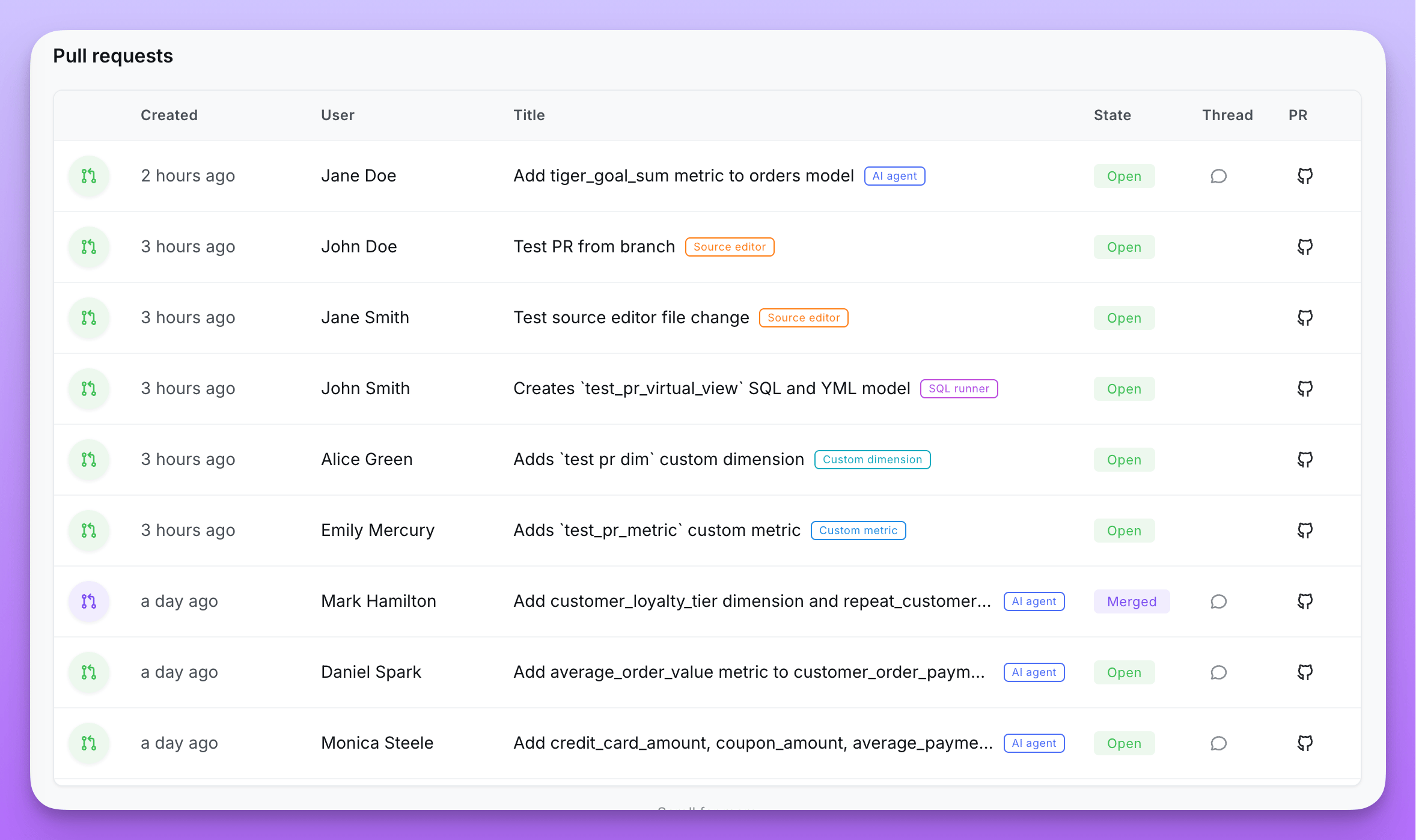
Understanding the pull requests table
Each row represents a pull request Lightdash created on your behalf. The table shows:- State: whether the pull request is
open,merged, orclosed. This status is fetched live from GitHub or GitLab, so it always reflects the current state of the pull request — even if it was merged or closed outside of Lightdash. - Created: when Lightdash opened the pull request, shown as a relative time.
- User: the Lightdash user who triggered the write-back. If the user has since been removed from the organization, this is left blank.
- Title & source: the title of the pull request, alongside a tag showing which feature created it (see Sources below).
- Pull request link: opens the pull request directly in GitHub or GitLab.
- Thread link: for pull requests opened by an AI agent, a link back to the agent thread that produced the change.
Sources
The source tag tells you which part of Lightdash opened the pull request:| Source | Created by |
|---|---|
| Custom metric | Writing back a Custom Metric to dbt |
| Custom dimension | Writing back a Custom Dimension to dbt |
| SQL runner | Writing back a model from the SQL runner |
| Source editor | Editing your dbt project files from within Lightdash |
| AI agent | A write-back triggered by a Lightdash AI agent |
Live status
The title and state of each pull request are resolved on demand from your git provider, batched per repository. The stored pull request link always remains usable, so even if the live status can’t be fetched — for example, if the pull request was deleted, or Lightdash has lost access to the repository — you can still open the pull request directly from the table.Pull request author
By default, pull requests Lightdash opens are authored by the Lightdash GitHub bot, regardless of which user triggered the write-back. The User column in the pull requests table still records the Lightdash user who triggered it. If you want commits and pull requests in GitHub to be attributed to you personally, you can link your GitHub account in your personal profile settings:- Click on the
settingsicon in the navigation bar. - Open
profileunder your personal settings. - In the My GitHub account card, click
Connect GitHub accountand authorize Lightdash on GitHub.
- Linking your GitHub account is currently gated by a feature flag. Contact Lightdash support to enable it for your organization.
- Personal GitHub linking is only available for GitHub. GitLab write-backs are always authored by the Lightdash bot.
- The Lightdash GitHub App must still be installed on the target repository. Your linked account only opens pull requests on repositories you have access to in GitHub.
Permissions
Viewing pull requests requires theview source code permission, which is granted to project Developer and above. See roles and permissions for more information about access levels.